Price update video:
Acceptable file format:
The first step to updating your supplier prices is to ensure the file you are using is in an excel workbook format (.xls or .xlsx).
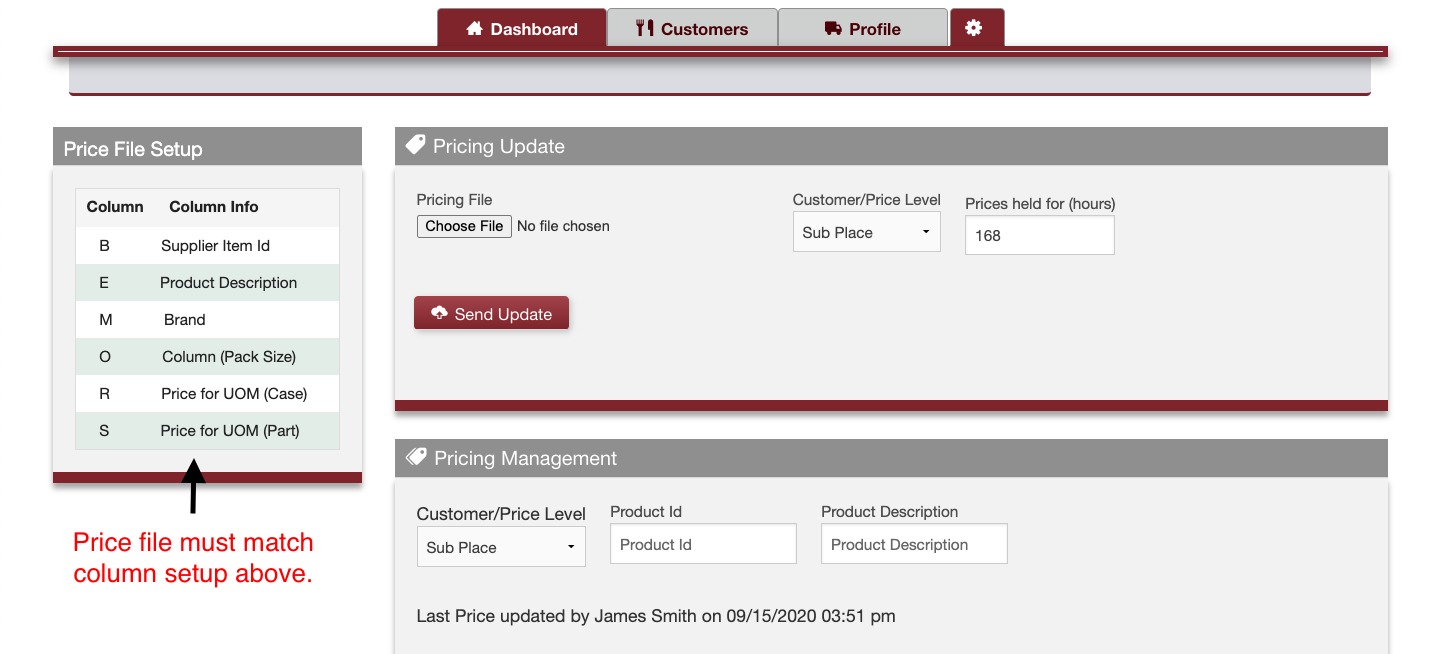
Once your file is saved correctly you want to make sure that your column information matches what your software was originally setup to accept.
You can see a visual representation of how your file should be setup on your dashboard page under the Price File Setup section, as seen below:
Price update error:
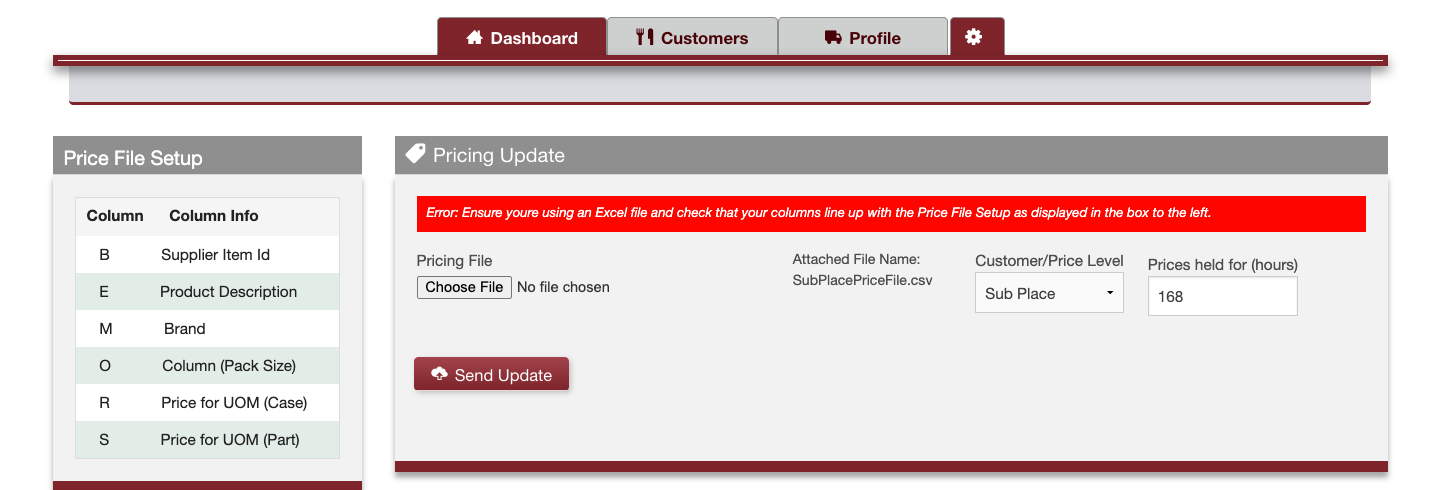
Error: Ensure you're using an Excel file and check that your columns line up with the Price File Setup as displayed in the box to the left.
If the price file you are attempting to use is not in an excel workbook format (.xls or .xlsx) you will see an error like the one in the image below.
Examples of unacceptable file extensions: .pdf .csv .txt
In order to fix this issue simply reproduce your price file in an excel workbook format (.xls or .xlsx) and resend to your customer.
Price update warning:
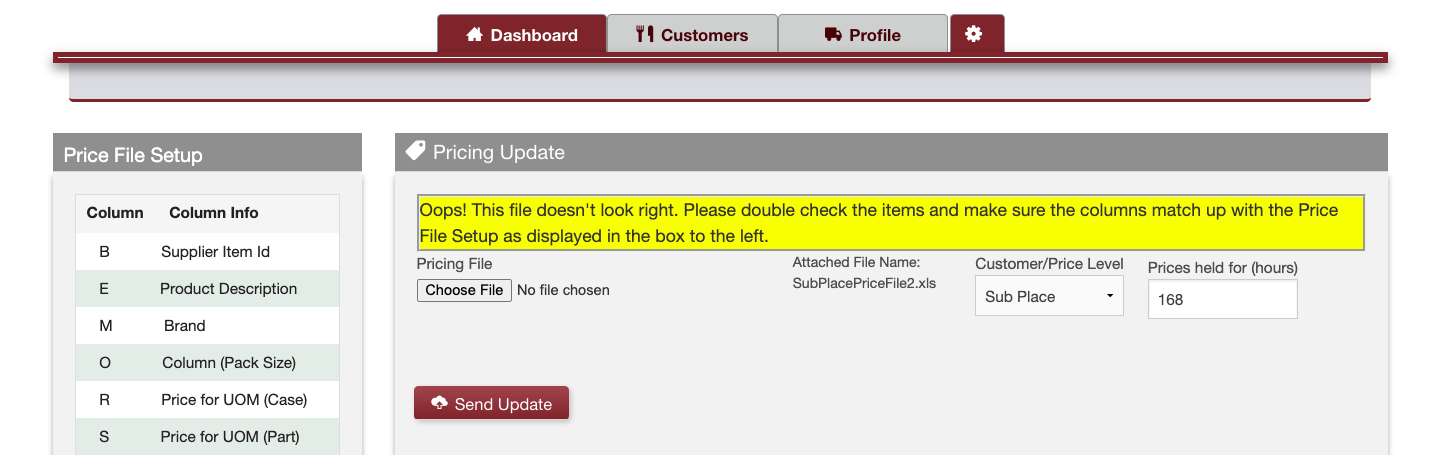
Oops! This doesn’t look right. This file seems to have a lot fewer items from your past update....
If the price file you are attempting to use has a lot fewer or a lot more items on it compared to your previous update you will receive the warning above.
If this is done on purpose (you are reducing or increasing the amount of prices you want your customer to see) then you can click Send Update again to push the update thru.
If this was not done on purpose then the column information has shifted in your excel price file. To fix the issue you would simply need to open your file, make sure your column info matches what you see under the Price File Setup section, and then resend.
Comments
0 comments
Please sign in to leave a comment.