Order Guide Page:
You have the ability to add products to your software on your order guide page. Once you add a product to your order guide you will be able to see and select all the items your suppliers are pricing you on, that fall under that product.
What is the difference between a product and an item?
Product: A product is essentially a general ingredient category that "like" items are grouped under.
For example; "Shrimp Raw" would be considered a product because within that ingredient category there could be hundreds of different shrimp items based on brands, specs, pack sizes, etc.
Item: An item is an exact ingredient that your supplier sends you a price on.
For example; while "Shrimp Raw" is a product "Shrimp Raw 16-20 P&D Tail-On 5/2lb" would be considered an item.
In the video above you can see that by navigating to your Order Guide Page and selecting Add Product you can search for and add a product to your order guide.
What happens after you add the product?
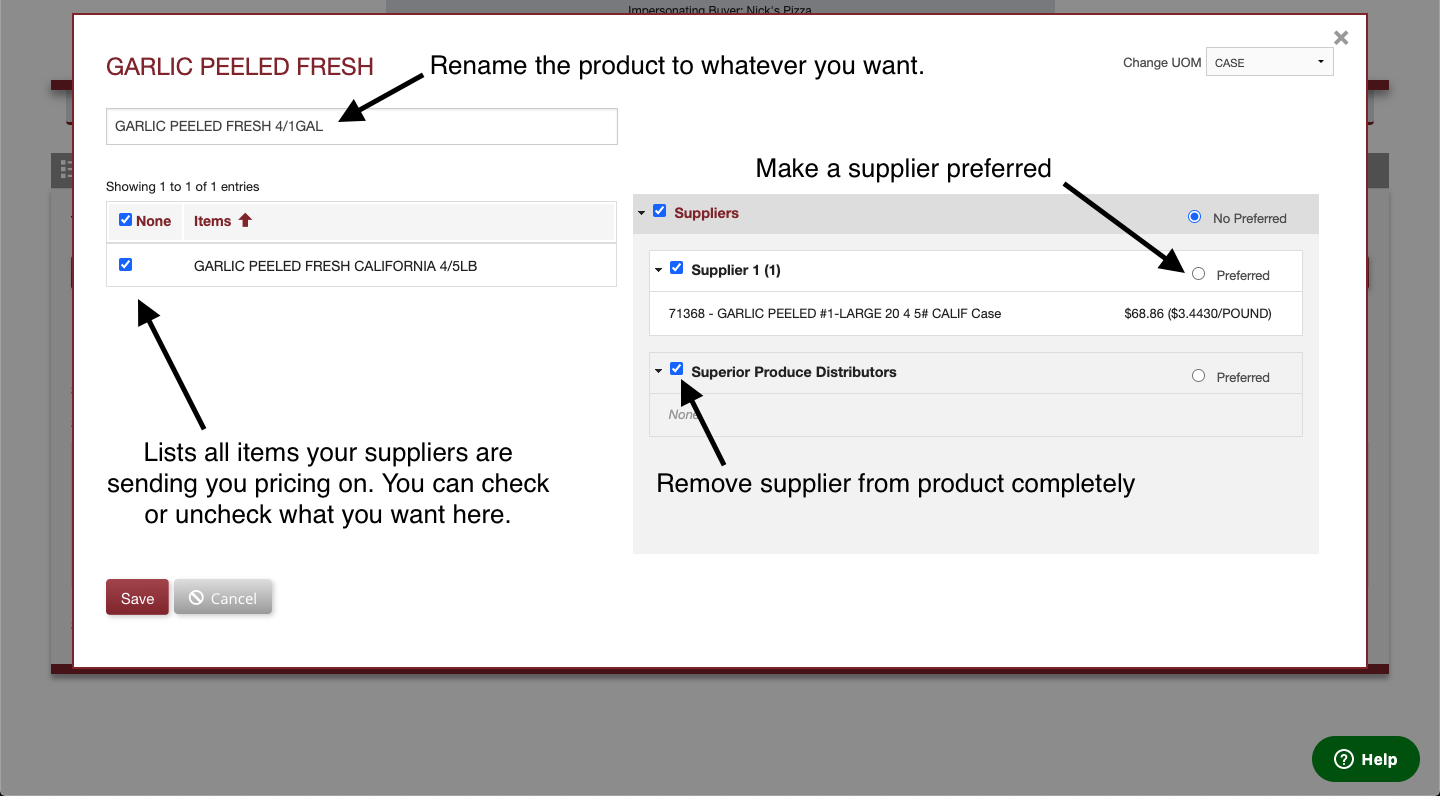
Once you add the new product to your list you will immediately be directed to that product's maintenance popup window. Within that popup window you will be able to:
- Customize the name of your product.
- Select the default purchase UoM (Case, Each, Pound).
- See and select the acceptable items your suppliers are sending you pricing on.
- Set a preferred supplier on the product.
- Remove certain suppliers from the product all together.
After you have made your edits and your product is to your liking, click Save. This product is now ready to purchase based on your specifications on the Place Order Page.
What happens if there are no items or the items you are looking for are not displaying in the edit popup window?
When you open up a product you are only going to see the items that your suppliers are sending you active pricing on.
If your suppliers are not sending you active pricing on the items you are looking for then you will not see them within this product window.
So what do I do to see the items I am looking for?
Online Supplier Integration: If your supplier pricing is getting pulled into your software via online integration:
- Simply make sure the item(s) you are looking for are on the online list that gets pulled into your software, and the item(s) will get pulled into your software on your next price update (typically Sundays). Once pulled in the item will be visible within the product popup window.
Sales Representative sends price updates: If your price updates are managed by your supplier rep:
- Reach out to your representative and let them know you need item(s) added to your software. As soon as your representative adds the item(s) they will be visible within the product popup window.
Can I see when my prices were last updated, so I can double check if the new item(s) were added?
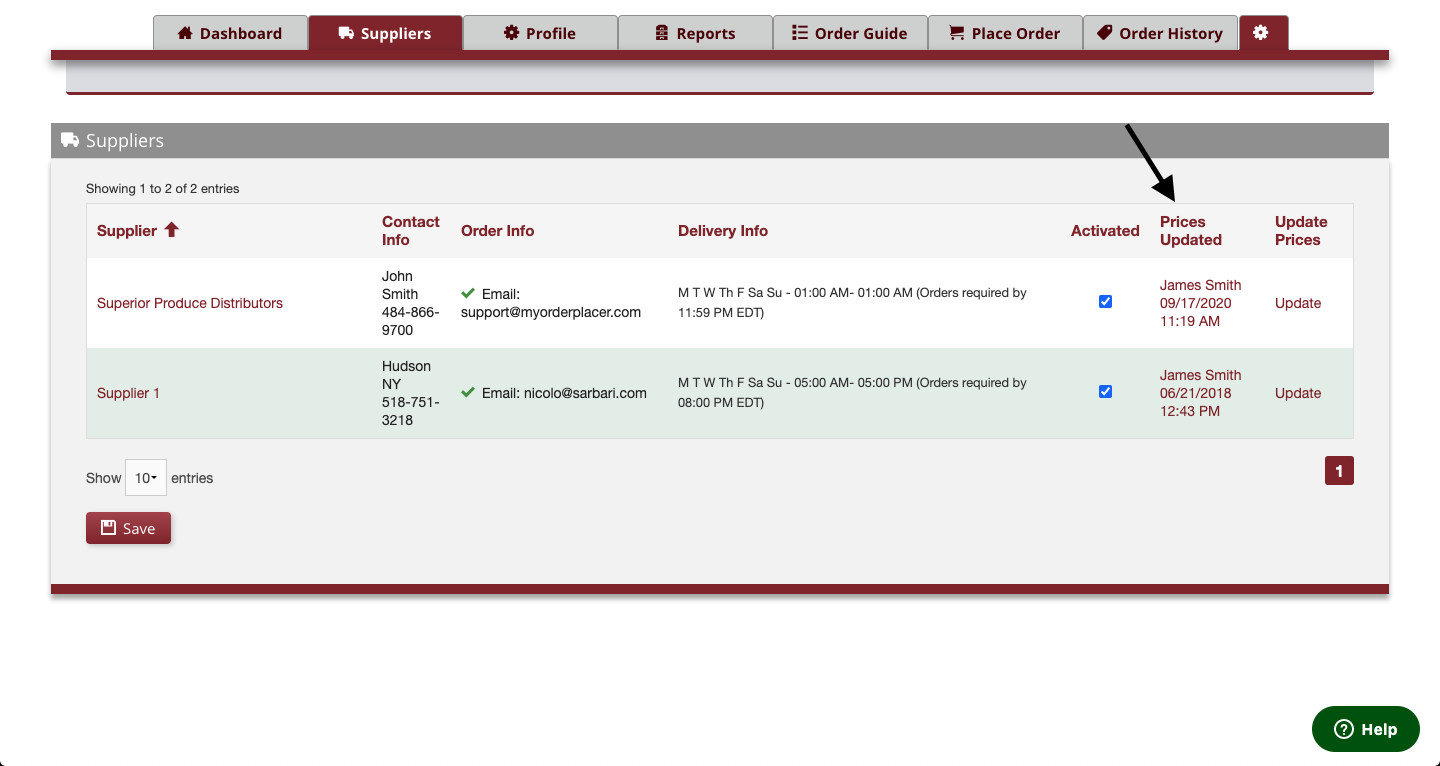
If you navigate to your Supplier Page you will be able to see the last day/time each of your supplier's prices were updated.
Comments
0 comments
Please sign in to leave a comment.